


Smart Mixing Traktor with Ableton
The following Windows tutorial will get Traktor and Ableton all synced up and implement the concept of smart mixing into your set up. Some of you may be thinking, “What is smart mixing”? This is a good Question, and the Belvario Smart Mixer site answers it well. “”Smart mixing” is a term introduced by Moldover, a controllerist digital musician who uses a sophisticated software and hardware configuration that allows him to make fast changes to the mix with a minimum of control movement. One component of this is his “smart mixer” Reaktor ensemble, which makes it easy to do basic automated EQ mixing with a simple fader move in Ableton Live (in Live 7 it’s possible to do with only native audio effects).
This Tutorial is For windows users. There is a Mac version here.
You will learn how to:
1) Route Audio From Traktor and into an Ableton Live smart mixer.
2) Sync Abletons Midi clock to Traktor which will be hosting the master tempo
3) Allowing use of a midi controller in two programs at once.
You will need:
1) Midi-OX (free)
2) Midi Yoke Junction (free)
3) Asio4all (free)
4) Virtual Audio Cable (not free) – If you find a free alternative please leave a comment.
5) Traktor (not free)
6) Ableton Live (not free)
7) Belvario’s Ableton Live Smart Mixer (free)OR if you want to use moldovers smart mixer
Moldover’s Reaktor Smart Mixer (free if you own Reaktor5)
8) If using Moldover smart mixer you will need Reaktor5 (not free)
9) If using Belvario smart mixer you will need slim slow slider side chain compression VST(free)
Note: If your sound card that supports internal audio routing consult your manual for the steps that involve internal audio routing. Also do not use virtual audio cable or asio4all, instead use the software and drivers that came with your sound card
Edit July 2009: Instead of using the Belvario smart-mixer you can now use a completely rebuilt smartmixer we have made availible on the blog. See Smart-Mixing Setup for Ableton and Smart-Mixing explained.
Getting Started!
I suggest starting small and working your way up so start with the Belvario smart mixer. You will also find the Belvario smart mixer to be much more CPU friendly and simpler to use. After you have the hang of this you can use some of Moldovers effects in your effects chain, or change over to Moldover smart mixing if you prefer that. Both sets of files have an Ableton live file that you can open to help make setting up smart mixing easier.
Step 1: Setting up Virtual Audio Cable
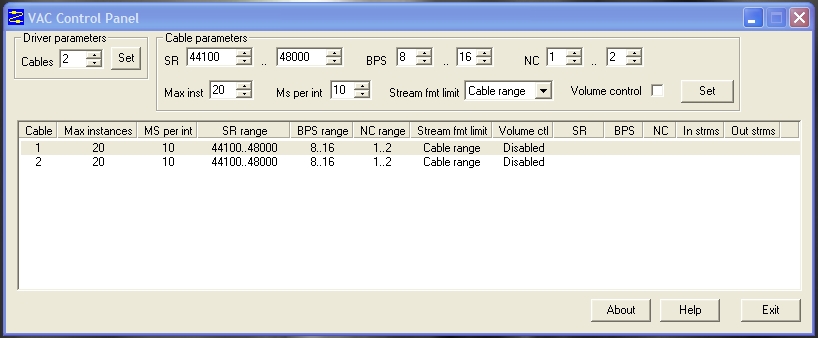
After installing the software mentioned above and rebooting your computer, The first thing we need to do is create two virtual audio in/out sets of cables that will enable Traktor to export its Audio to Ableton Live. You will need to open the Virtual Audio Cable Control Panel to do this. Change the set of cables to 2 sets(top left of control panel) – it should then look something like this :
Note: The more decks you want to work with the more sets of cables you will need, 1 set = 1 deck, 2 sets = 2 decks and so on. Here we are setting up two decks but this is easily scales to 3 or 4 decks.
Step 2: Setting up Midi-OX.
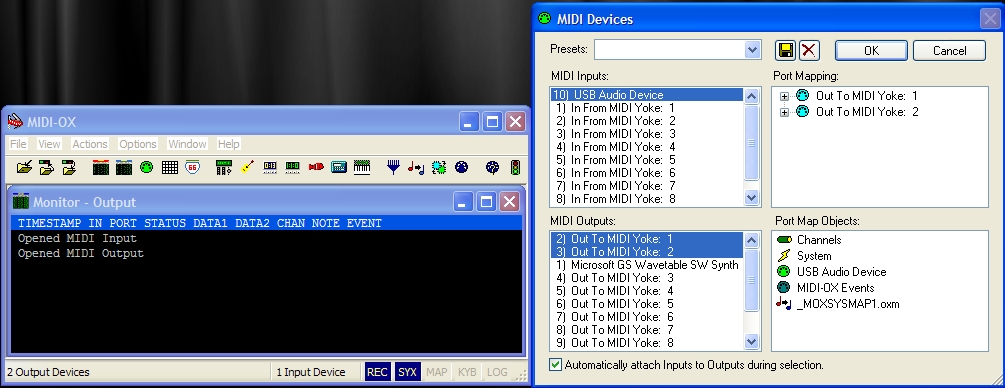
Windows does not normally allow two programs to access the same midi controller at the same time, so we will need to get around this by creating two virtual midi devices that export the data from your midi device. To do this we open Midi-OX and click Options then in the drop down list select midi devices, In the Midi Inputs box you need to select your midi device, then in the outputs box select midi Yoke 1 and midi Yoke 2 as shown above.
Step 3:Setting up Traktor
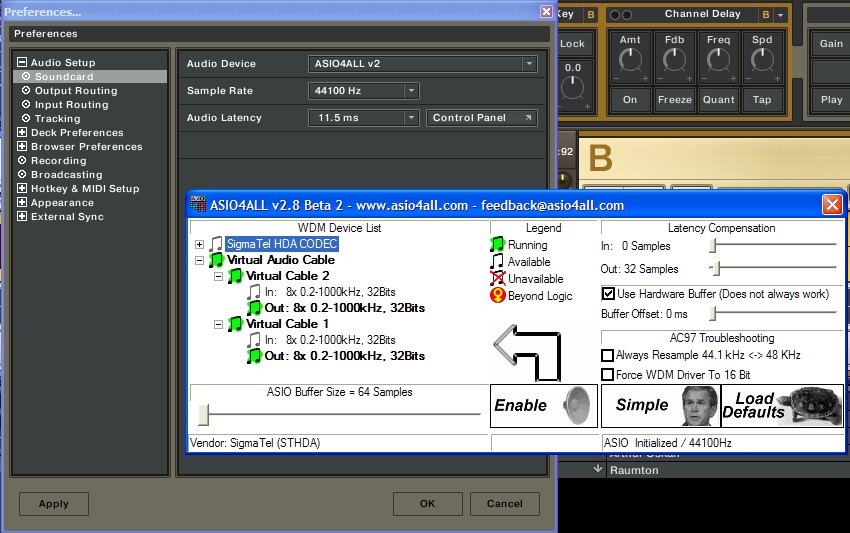
Open Traktor, Click File then Audio Setup. Set your Audio Device to ASIO4ALL. Next click Control Panel, click advanced to enable more options in the asio4all panel. You will need to disable all other audio devices besides Virtual Audio Cable signal outs. The more decks you want to work with the more Virtual Cables you will select here, one cable for each deck. In this instance we are using two decks as shown above
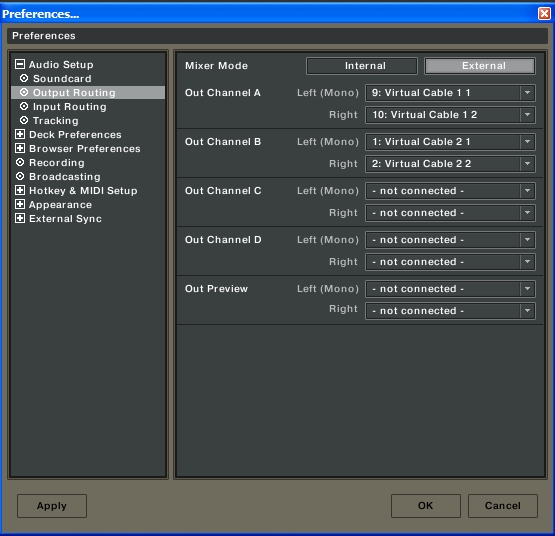
Next we need to route the decks to their respective Virtual Audio cables, exit the Asio4all panel after setting it up as shown above. Now on the left hand menu in the Traktor settings menu click Output routing as we will be mixing externally in Ableton the first thing you need to do is select external mixing mode. Now you need to tell Trakor which Virtual Audio cables to use on which deck, adjust with your settings so they look like whats shown below:
Note: The more decks you wish to use the more Virtual Cables you will have to select here.
Traktor will be hosting the master tempo so we have to set the midi clock up to a midi pathway Ableton can access. Expand the menu and select Midi Clock, set the midi interface to ‘Out To MIDI Yoke 3′. Make sure to tick the send midi clock box as shown here. Once you have completed this tutorial you can come back and tweak the midi clock delay to get everything perfectly on time.
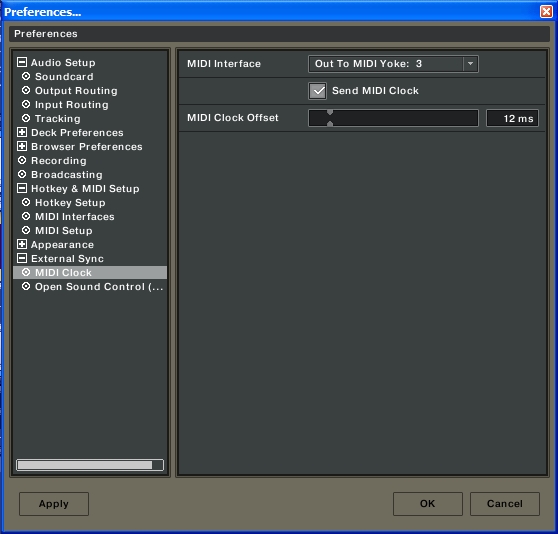
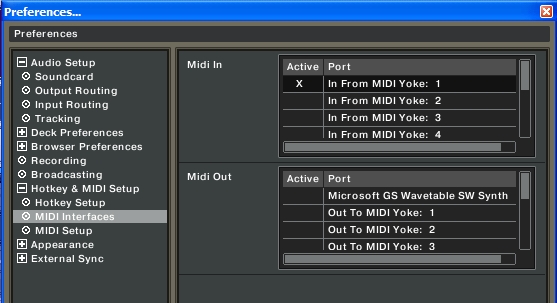
Now its time to select the midi device Traktor is going to use, on the preferences menu expand the “Hotkey and Midi setup” menu, then select Midi Interfaces from the Menu. Next set midi yoke 1 on just the in as shown below:
Step 4: Setting up Ableton Live
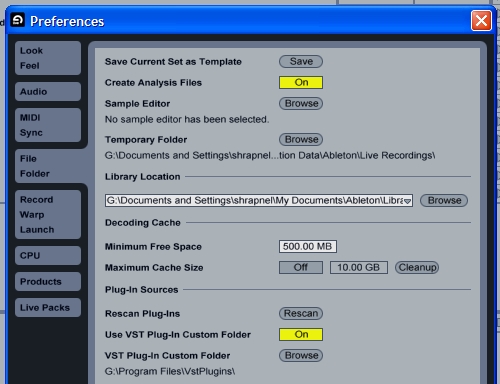
Open Ableton Live then open the Belvario or Moldover’s Ableton Live file. Make sure you put it into your Ableton VST directory and enable VST support in Ableton file settings menu like shown:
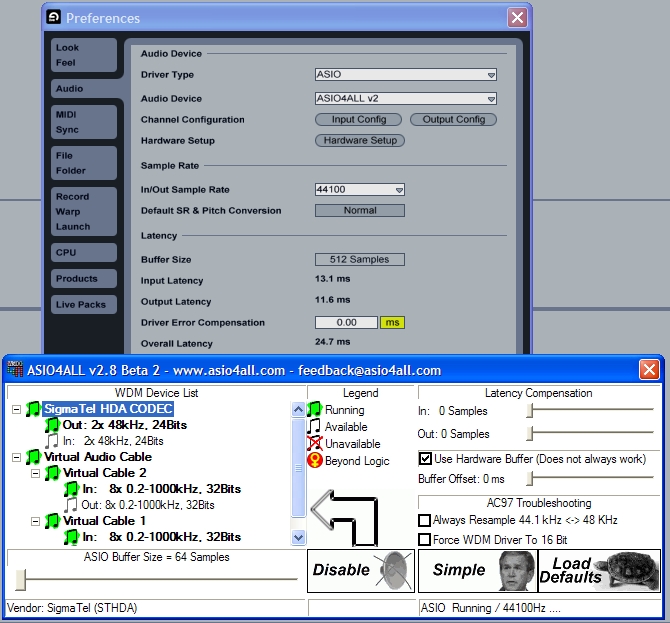
Click options on the Ableton Live menu, then preferences. You need to select the driver type to Asio, then the audio device to Asio4all. Click hardware config and set up your Asio Panel as shown in the diagram below. Once again the more Decks you want to have control of the more Virtual Cables Ins you need to select, for every one deck you need one virtual cable in activated. You also need to enable your main audio device this time, in my case this is the Sigmatel out which is the chipset on my laptop. If you have a sound card with two outs, you should enable both of these outs to allow monitoring in Ableton live. I only have a single channel out from my laptop at this time, this is why only one is showing and activated.
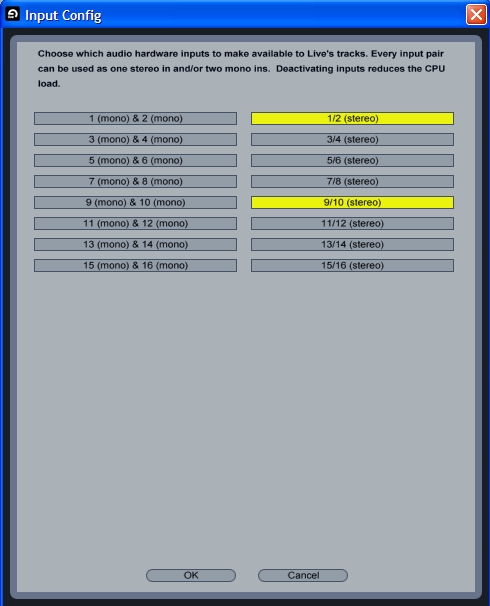
Ableton needs to know what audio ports you want it want to work with so click the Input config button on the Audio config screen. In my case Virtual Audio Cable routed my audio to Stereo 9/10 for Deck A and Stereo 1/2 for Deck B, strange outputs but at least the program is functional ;) You might want to turn all the inputs on to start with to work out which cable is which, then disable the unused cables when you work out which cables are been used by Traktor. In the end it will end up looking something like this :
Now click Output Config, if you want to do your mixing externally on a mixer you will need to select one stereo channel for each deck you want to route. If your mixing with midi controllers you will need 2 stereo outputs enabled, one for your mix and the other for monitoring. I personally only have a single stereo channel sound card so i only have the one output enabled as shown :
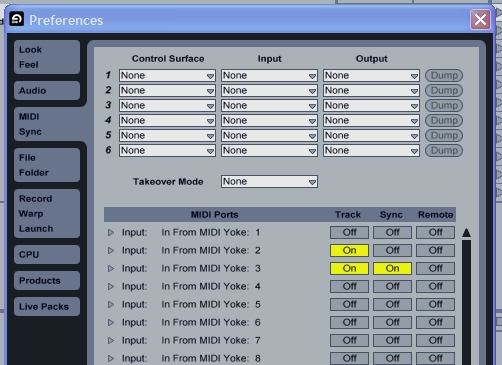
The midi interfaces that Ableton will be using has to be set up next. Click Midi Sync on the Ableton menu then select Midi Yoke 2 and 3’s Track, Sync and Remote all to on. As shown here:
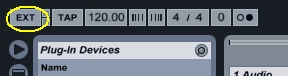
Now close the Ableton setup window and enable external sync by clicking the EXT button on the top left of the Ableton Live main window as shown below:
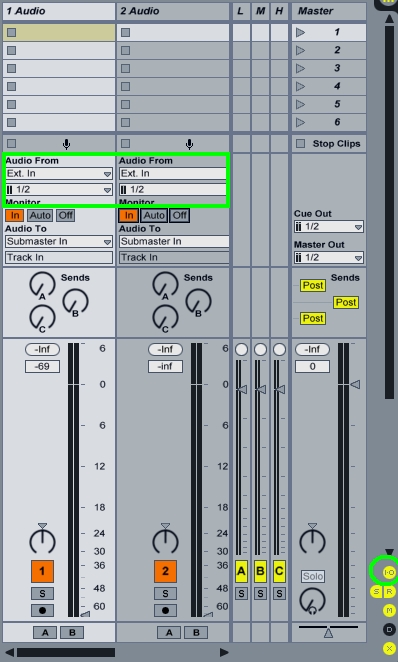
Change the inputs for the first two tracks in either the Moldover setup or the Belvario setup. Click the IO button to configure the inputs and outputs in your Ableton channels(circled in the picture), then change the inputs as shown in the rectangle.
You have now successfully set up from beginning to end the very basics of a synced smart mixer setup from Traktor to Ableton. I suggest assigning midi controls on your device for your EQ’s to control the sends on the Belvario smart mixer, or alternatively assign them to the smart mixer in the reaktor5 ensemble.
Personalize your mix by adding in VST’s and assigning them how you like, its also possible to add extra audio channels and add sampled(or your own content) to these tracks and have these channels smart mixed. This is only scratching the surface the possibilities are endless, all thats left for you to do is explore them.




April 4th, 2008 at 8:08 pm Quote
Bravo, and that’s just the *first step* of the process!
April 4th, 2008 at 8:18 pm Quote
Yups, I’m gonna stop the jibberjabber and try that sucka out soon! :D
April 4th, 2008 at 8:24 pm Quote
Is there anything comparable for Mac?
April 4th, 2008 at 8:30 pm Quote
Look at the sound flower post. That will get your audio into Ableton.
http://www.djtechtools.com/2008/03/29/route-any-dj-software-into-ableton/
April 4th, 2008 at 8:44 pm Quote
GREAT WORK BENTO SAN!
THX
April 4th, 2008 at 9:30 pm Quote
very cool
April 4th, 2008 at 11:52 pm Quote
Sorry, I tried everything like u were saying & some other ways… but nothing works. The audio cables send no signal. I really don?t know what i?m doing wrong. what kind of system do you use? xp, vista?
Greetz from germany…
April 5th, 2008 at 12:47 am Quote
oh yes…now it works :-p nice!!!!
ok i have got much much latency…will try some tomorrow…
GREAT WORK!
April 5th, 2008 at 11:49 am Quote
I made a partition with XP installed just for producing and live mixing. I found vista would produce audio fragments in my setup that went away when i installed XP.
Yeah, you will have to tinker with all your latency settings in asio4all to get optimum latency settings.
If we can find an alternative to Virtual Audio Cable with lower latency thats preferably free this might help a little, i will try to explore the alternatives but i invite everyone to help.
If your audio card has quality drivers with its own virtual audio routing i imagine this would also help reduce the latency. Ive heard these exist but its not exact a marketing. So this is another thing people can help with, what external usb/firewire sound cards have quality low latency virtual audio drivers.
So thats two things everyone can help with-
1) Help find a Virtual Audio Cable alternative with lower latency – preferably free – this is not desperate but i believe there it potential room for improvement.
2) A list of external Audio Devices with at least 4 independent channels (bare minimum for mixing) that have their own low latency virtual audio routing drivers. (Mac users even might be able to help here)
All help is greatly appreciated !
Also thanks heaps for the nice feedback guys, its nice to be able to help out around here.
April 5th, 2008 at 11:54 am Quote
Erm by that i do not mean this will not work in vista, 90% sure it will – its just that i ran into some audio problems producing, not with this setup in particular.
April 5th, 2008 at 12:00 pm Quote
but who is using vista :-p
April 5th, 2008 at 12:15 pm Quote
No one i hope ;) Though some users may have hardware that do not have XP drivers, so lets try to keep them in mind too, but obviously this should not at the cost of XP users – so if you find something that only works in XP or vice versa feel free to post that too.
If anyone can confirm this works on Vista that would be great too.
April 5th, 2008 at 5:16 pm Quote
Sweet, got my overall latency down to 3.33ms with just a inbuilt sigmatel audio chipset in my laptop! To lower your latency use the Asio4all Control panel to decrease the latency on Asio4all, make sure to change the latency both both the soudcard/chipset AND the Virtual Audio Cables in both Traktor and Ableton Live. Problem solved :)
April 5th, 2008 at 5:24 pm Quote
Rather : To lower your latency use the Asio4all Control panel to decrease the latency on Asio4all, make sure to change the latency on both the soundcard/chipset AND the Virtual Audio Cables in both Traktor AND Ableton Live.
April 5th, 2008 at 5:30 pm Quote
Thanks for your contribution Bento San!
April 5th, 2008 at 6:16 pm Quote
Its been a pleasure.
Also guys make sure you press the send button on the Traktor Master Tempo, otherwise Traktor wont be getting the tempo sync signal.
April 5th, 2008 at 6:17 pm Quote
Rather : Also guys make sure you press the send button on the Traktor Master Tempo, otherwise !Ableton! wont be getting the tempo sync signal.
Damn its my day for typos, grr.
April 6th, 2008 at 12:27 pm Quote
Has anyone tried to get this working on a Mac yet, beyond the audio/soundflower bit?
Meaning, can we natively / easily get sync to happen and share midi controllers across the two apps? I haven’t explored this personally, yet.
April 6th, 2008 at 4:10 pm Quote
Set your audio sampling rate on Ableton and Traktor both to 48000khz, this will enable you to lower your latency considerably.
April 6th, 2008 at 5:30 pm Quote
Reaper offers similar functionality with ReaRoute, their virtual ASIO driver (the downside is you have to be running reaper for it to operate) I used to use it to route torq into reaper to use vst fx. I never got it working between reaper, torq, and live — maybe because I was working on an under powered machine and maybe because the rearoute driver isn’t designed to have more than one program address it.
Live can run as a rewire slave, so you could use reaper to host live and then rearoute to pump audio from another program into reaper.
April 8th, 2008 at 12:02 pm Quote
I am totally excited BentoSan, simply can’t wait to get this running. Awsome dude!
April 10th, 2008 at 2:18 am Quote
I routed the audio signals from Traktor from Soundflower today. The trickiest part is getting Ableton configured, but the last screenshot from the article above is pretty much what I have setup.
However, I didn’t try mapping any MIDI controls. I’ll give that a shot tomorrow and report back.
April 14th, 2008 at 11:06 pm Quote
I routed the audio signals from Traktor from Soundflower the other day. The trickiest part is getting Ableton configured, but the last screenshot from the article above is pretty much what I have setup. I tried the MIDI stuff today, and yet, both Ableton and Traktor receive the MIDI data.
April 19th, 2008 at 1:44 am Quote
Does this work for Mac…sorry if this is a dumb question?
Thanks from Canada
May 23rd, 2008 at 2:32 am Quote
Thanx Man !! I made it happen although my latency is way too high..not even thinking about using timecode vinyls…anyway…i googled my ass off this night and found a pre release of JACK for XP :
http://www.grame.fr/~letz/jackdmp.html
There?s also an interface qjackctl for download…i?ll check it out tomorrow..how about we try that out and share our thoughts ??!!
Peace.
May 23rd, 2008 at 3:02 pm Quote
After a couple of hours, I managed to hook up traktor with ableton with JACK and NO (!!) Latency….works wonderfull….i just recomend to download the latest version of jack and try it out…if there are still people around who want to know – let me know, and i send a little tut…
Happy djaying !!!
June 6th, 2008 at 10:25 pm Quote
Does anyone know how to get both tracks to mix in the headphones rather than both blasting away at the same volume?
June 25th, 2008 at 8:51 am Quote
Cue-ing?
July 7th, 2008 at 8:11 am Quote
Incredible, it works! Next question: is there any way to get Traktor Scratch playing through Live on the same laptop? Thanks a lot.
July 11th, 2008 at 11:36 am Quote
Hazza! grats on getting it to work Jokko :)
Sorry i don’t own a copy of Traktor Scratch so i cant test it. Keep us informed if you get it working.
July 11th, 2008 at 4:25 pm Quote
Yes, cueing.
July 22nd, 2008 at 6:23 pm Quote
Baaah… Routing traktor into Ableton has eaten the crossfader out of my traktor interface. XD
July 22nd, 2008 at 6:58 pm Quote
LoLz… just found out, routing this through Ableton needs deck a to be on the left side, and deck b to the right side.
If this is forced, Traktor takes the crossfader out of the view. (At least, that is what I could find in the manual)
July 28th, 2008 at 7:34 am Quote
hey anonymous (may 23rd)
could you hook us all up with a tutorial on how you got it to work with Jack? would be good cuz jack is free.
July 29th, 2008 at 12:16 pm Quote
Tekki your externally mixing in Ableton, this means that you need to use the crossfader in Ableton. This tutorial was already massive as it was without teaching people the basics of using Ableton.
I’m going to write one for Jack the day its easier to use, going by the responses some of you guys are having a hard enough time getting this one working. Jack for windows will make this 10x harder, trust me i am presently using Jack, its still very much in beta stages and you need to crawl around the windows command prompt to set everything up. The future looks promising to Jack for windows though :)
October 9th, 2008 at 2:05 pm Quote
what if I have two laptops, one with traktor, another with ableton? How can I sync up both systems? I have a M-audio 410 interface. Any site where it explains this method?
October 9th, 2008 at 2:55 pm Quote
Hi, I’ve done everything like the manual said.. (perfectly explained btw)
And everything works except… I don’t have sound! There’s probably something wrong with my asio setting but I don’t understand much of all this (Rooookieee :) ) euhm but anyway.. I’ll try to explain my settings in asio and we’ll see if someone can help me.
I’m using only a laptop so no other cards or anything, just the basics of the basics..
In the tutorial BenSan said: “You also need to enable your main audio device this time, in my case this is the Sigmatel out which is the chipset on my laptop. If you have a sound card with two outs, you should enable both of these outs to allow monitoring in Ableton live. I only have a single channel out from my laptop at this time, this is why only one is showing and activated”
When I open those settings in asio for my laptop I get this..
Conexant High Defenition SmartAudio 221
> Conexant HD Audio aux in
IN: 2x 44. 0-96 ….. (disabled this)
>> Conexant HD Audio Headphone
Out: 2x 44 …… (enabled)
>>> Conexant HD Audio input
IN: 2x …. (disabled)
>>>> Conexant HD Audio output
Out: ….. (enabled)
& than the Virtual Audio Cable where I enabled the Ins and disabled the Outs
With Traktor I’ve done it exactly how the tutorial said it.
I’ve tried every different combination with my standard main audio device and I don’t get any sound.. What can I do about it? I hope someone can help me.. Thanks in advance..
Tical
November 19th, 2008 at 5:56 pm Quote
Wow! That’s a lot of setting up! And all just to work around the fact that Traktor is not a VST plug-in? Don’t get me wrong, this is really cool, but it is much easier and cheaper to get Deckadance to work with Ableton through VST.
November 24th, 2008 at 10:05 pm Quote
so with this allow me to mix on traktor and use effects from ableton live?
November 27th, 2008 at 5:07 am Quote
yes it will
December 2nd, 2008 at 11:29 pm Quote
when i try to let the input output boxes to show on the channels it never works! I use belvario’s liveset, when i click the i/o button it just turns grey.
December 11th, 2008 at 11:43 am Quote
Deckadance doesnt have nearly enough control over mp3s – hence why i use this appraoch. I really do like where Deckadance is headed, but the software needs more time to mature.
If you i/o button and it turns grey you have to make make the Ableton window bigger, its not showing the I/O because there is simply not enough room to display it amongst all the other controls you need to see.
December 11th, 2008 at 1:00 pm Quote
In reference to my mentioning in the Article that its maybe better to use routing drivers that comes with your Sound-Card. I have discovered since that soundcards that claiming they can route audio infact only route from WDM to ASIO – this will produce horrid latency and bad sound.
December 13th, 2008 at 4:23 am Quote
Can i close the Midi Ox Setup after setting it up or does it need to be opened all the time? Traktor doesn’t recognize my nanoKontrol so far. Ok i found it out on my own. Needs to be open. But now Traktor starts to hang and stutter. Whats the problem? Everything else works wonderful…
December 13th, 2008 at 4:37 am Quote
Also let me quote you:
“…Click Midi Sync on the Ableton menu then select Midi Yoke 2 and 3’s Track, Sync and Remote all to on…”
The picture shows they’re not all enabled. But however,changing those settings doesn’t end the skipping behaviour of the Traktor as long Midi Ox is running.
December 13th, 2008 at 5:03 am Quote
Sorry for bothering. But after restarting the three of them it now works perfectly. Great work! Thank u so much!
By the way…does that work just as well with Cubase? Want to use the Ableton effects there too!
December 18th, 2008 at 5:36 pm Quote
Anybody got this working with traktor scratch pro? Or is there no difference?
Also, i found the following article
http://www.native-instruments.com/forum/showthread.php?t=63867
I think it says you can route traktor into ableton and back into the mixer with just using the Audio8DJ and two extra cables. I followed the instructions but I don’t get any audio out of ableton. Maybe anybody got this method working?
December 31st, 2008 at 10:19 am Quote
Yes this method works with Traktor Pro
January 1st, 2009 at 1:09 pm Quote
Pretty interesting stuff here! Can this be used with other timecode vinyl apps? I’m using Mixvibes and DJ Decks – could I incorporate either of those systems into an Ableton Live set???
January 1st, 2009 at 1:09 pm Quote
January 11th, 2009 at 6:39 pm Quote
this is great stuff. Now rerout ableton’s midi out through the IAC and deliver templated EQ and transport commands to traktors controls. Making the midi loops and watching them roboticise traktor is not only fun. But .. it sounds totally bad-assssssss.
January 19th, 2009 at 1:48 pm Quote
any chans to hook up ableton and dj mixer? not a midi mixer, just regular numark djm 06?
January 20th, 2009 at 12:41 am Quote
sorry but i have a question, how can i do that , if i use a fast track pro external audio device, ( i donw know if i need use a virtual audio cable) sorry, bu i try and is imposible, if you cant helpme , thanks!
January 29th, 2009 at 3:23 am Quote
Can anybody explain how to do this on two computers ?
I’m using Traktor (and Traktor PRo), my friend is using Ableton. We will be doing this on two PCs.
thanks in advance!
January 30th, 2009 at 3:45 pm Quote
Yavor: if you wont use 2 laptops, is better if you connect the 2 pc by ethernet cable and sincronize the traktor and ableton by the midiclok , look this web http://www.nerds.de/en/ipmidi.html, and for mac users is free!
February 28th, 2009 at 3:15 am Quote
Whoa, great tutorial, I´ve gotten everything to work except the MIDI timing…Ableton is synced to Traktor and receiving MIDI clock info, but it’s still not running at the same BPM!!
It seems to be relative….If I run Traktor at 120 BPM, Ableton insists on running at 179-180 BPM, if I put in a track in the 80 BPM range, the Ableton tempo drops to 90 BPM…
Obviously there’s some sort of discrepancy going on here, but I cannot for the life of me figure out what!
I am sending MIDI clock from Traktor on “Out to Midi Yoke 3″ and receiving on “In from MIDI Yoke 3″ in Ableton, with Track, Sync and Remote all set to ON.
I´m not using any other midi controllers and have turned all the other MIDI inputs and outputs off until I figure out what’s going on…
Any thought? HALP!!!
February 28th, 2009 at 3:33 am Quote
http://www.djtechtools.com/forum/showthread.php?t=3663 – Anyone whos wondering about syncing Traktor to Ableton should read this entire forum thread.
March 9th, 2009 at 5:46 am Quote
Similar functionality like VAC promises the VST Plugin ExtraBoy from http://www.elevayta.com/
Didn’t try it yet but I will have a look in the next few days. Reads interesting…
March 9th, 2009 at 5:21 pm Quote
ExtraBoy Pro is awesome. I’ve made some really quality acapellas with it.
March 10th, 2009 at 3:47 am Quote
Did i write ExtraBoy!? Of course i meant StreamBoy…
“Stream audio data, in real-time, from a track, or tracks, within one or multiple host applications to a track, or tracks, within another host application. Access any, and all, the effects from all of your audio processing tools within your favourite host application – wow!”
March 10th, 2009 at 4:51 am Quote
StreamBoy is a VST and hence will only be useful programs that support VST’s
March 13th, 2009 at 8:17 pm Quote
why the hell would you user traktor with ableton? YOU DON’T NEED IT. ableton has all the features that traktor has plus way more.
March 13th, 2009 at 10:14 pm Quote
Ableton is missing alot of features that Traktor has and vice versa, hence why this tutorial has grown rather popular. Ableton is a wonderful program, but its certainly not the end all and be all of dj applications. Using Traktor + Ableton together gives an unprecidented amount of control over the playback of an mp3. The day Ableton has all the features Traktor has + what Ableton already has is the day ill use Ableton without audio routing.
March 15th, 2009 at 11:47 pm Quote
Thanxs it all works fine with my phonic firefly 808.
But can somone tell me how i can set up channel 3/4 for headphone monitoring thru my firefly 808?
I selected channel 3/4 of my firefly in asio4all and activated channel 3/4 out in ableton but if i turn on cue in ableton the sound is still coming thru channel 1/2 of my phonic firefly.
April 28th, 2009 at 8:51 pm Quote
April 28th, 2009 at 8:58 pm Quote
is it possible to use as your MIDI controller Stanton’s DaScratch since it’s controlled by DaRouter? would it affect sending the signal to the two virtual MIDI Yoke ports?
April 29th, 2009 at 2:37 am Quote
It sure is, just do the steps i described in the article but instead use the virtual out midi port comming out of the darouter software instead of the midi out from the unit.
May 6th, 2009 at 11:20 am Quote
Hi
I have connected Ableton 8 with Traktor Pro but I ran into a few problems.
Im using Belvario Smart mixer, but slim slide compressor keeps crashing Ableton. It says VST couldnt be found, although its in right folder…Can someone gives an example where to sidechain compressors?
I have problems with submaster too.
When submaster In is monitoring in like on a picture above, when i move deck B fader in Traktor I get strange reverb kinda noise. This only happens using deck B fader and submaster In button is orange. Anyone have this problem before?
Next thing is I only get sound to submasters, feedback and busses colums gets no sound…
Hope someone would understand my problems :)
Btw Im using DDM4000 as a mixer and midi controller wired thru Audio Kontrol 1
May 10th, 2009 at 2:29 pm Quote
Don’t bother reading the forum folks because despite BentoSan’s excellent details instructions there is a bug in Traktor and he says towards the end of that very long thread:
http://www.djtechtools.com/forum/showpost.php?p=40548&postcount=128
May 10th, 2009 at 4:01 pm Quote
Actually in that thread there is an explination of the work around, in this post i did in particular – http://www.djtechtools.com/forum/showpost.php?p=26676&postcount=104
Btw midi syncing isnt just a bug in Traktor its a problem with the midi specification itself being unsuitable for syncronising tracks together. You will find the work around i explained in the post i just linked to be the most efficent way of syncronising while still allowing for fairly drastic tempo changes.
Sorry to say but theres currently no functionality in either Traktor or Ableton at this stage that will allow the two to be tightly synced with one another without the user having some sort of manual input, like i explained in the post.
May 11th, 2009 at 4:38 am Quote
Hi all!!
This is a very nice article/tutorial. But from what I’ve read, it describes how to route the audio from Traktor to ableton in a way that can only be used with internal play in traktor; that is, it can not be used with the timecode vinyls/cds (scratch enabled).
Can someone confirm this? Is it possible to route the audio from the Audio8DJ interface into Traktor ableton and back so that timecode vinyls can be used with Trakto [Scrath Pro] and an external mixer??
Thanks!!
May 11th, 2009 at 5:04 am Quote
I meant to say: …route the audio from the Audio8DJ interface into ableton and back so that timecode vinyls can be used with Trakto [Scrath Pro] and an external mixer??
May 13th, 2009 at 7:33 am Quote
After I installed all programs and try to set up everything Traktor Pro won’t start up and just hangs itself when its trying to boot up. I have tryed everything. Uninstall and reinstall all programs inc Traktor but with no success. Same problem still. Help anyone!
May 13th, 2009 at 7:56 am Quote
Ok, I have come to the conclusion that its the MidiYoke that makes Traktor Pro hang when you try to run it. After I uninstalled it traktor starts fine, Intalled it again and same problem. Ideas anyone, someone says its not possible and its a bug in Traktor, is that true?
May 13th, 2009 at 8:01 am Quote
@Dj Koder:
Well for starters Deckadance is in my opinion a shit app. On top of that you still dont solve all the issues and newones pop-up.
May 13th, 2009 at 9:52 am Quote
@Chris when you load Traktor, you need to wait even if looks frozen. Midi yoke occupies all your connections so Traktor will be very slowly. Even if you change a setting it can take a few minutes for Traktor to remember it.
Patience is all you need:)
Make sure you turn off all unneeded midi yoke channels in Traktor and Ableton because they are eating your resources and make Traktor loads slower
May 13th, 2009 at 6:27 pm Quote
So how do I turn off unwanted midi ins and outs?
I really only need 1 in 2 outs…Or are they turned off be default if I dont actually activate them?
May 13th, 2009 at 6:37 pm Quote
On sorry you clearly said, I need to do it in live and traktor my bad.
Thanks a lot Damasta , works lika a charm now!
May 13th, 2009 at 6:38 pm Quote
I clocked how long it took for traktor to load: 4 minutes and 6 seconds!
So yes It takes a LOOOONG time lol.
May 13th, 2009 at 11:49 pm Quote
Guess I was celebrating to soon.. still trouble ;S
May 14th, 2009 at 12:40 am Quote
I give up…
May 20th, 2009 at 11:26 am Quote
Hi guys,
really exited to get it working, but got stuck allready at midi ox.
I’ve set the 2 virtual cables, no problem (with a free limited edition)
Then went to midi-ox , but didn’t encounter the YOKE’s that I need.
I’ve tried selecting every midi-device, but didn’t see any YOKE’s…
I can only think of the limited edition of Virtual Cable that didn’t do the trick… or am I missing out on something else?
grtz,
J
May 20th, 2009 at 12:51 pm Quote
Hey BentoSan how is progress going on tutorial you were writing?
May 29th, 2009 at 1:33 am Quote
Hey, I’m having a real hard time trying to get this setup up and running, i’ve followed the instructions to a T but no joy. Any help whatsoever would be much appreciated,
Firstly, heres what I’m using:
Numark DJ IO audio interface
Allen @ Heath Xone 1D MIDI Controller
an External Mixer
Windows Vista Home Premium (unfortunately!)
My first question concerns the MIDI controller, I’m a novice when it comes to MIDI so are there any specific mappings that I have to configure for both Traktor & Ableton, I have a .tks loaded into Traktor, do i need an equivalent mapping for Ableton? Could anyone tell me how this is done?
2) there’s no audio. I checked the OUT tab in ASIO4ALL (this is the only external interface I could think of which might allow for this, due to the fact that it is an ASIO driver itself). So far as I can tell I’ve routed the VAC out’s from Traktor into the Input Config in Ableton correctly because the volume is showing reacting in Ableton.
Again, any help would be greatly appreciated! Cheers!
June 8th, 2009 at 5:35 am Quote
@DJFace – 1)No there is no midi mappings that you need – you can use any .TSI file you wish, also ableton doesnt have mapping files. Its all built into the live set file.
2)Try going into advanced mode when you are making the routing changes nessicary – that way you see the inputs and outputs individually. Both programs cant be using the same input or output at the same time.
June 9th, 2009 at 9:19 pm Quote
alright, got it working! the latency’s are MONUMENTALLY out of whack, but it works! Thanks for the help BentoSan. I’m looking forwrd to see what this set up is capable of!
June 18th, 2009 at 11:51 pm Quote
tanks for ableton traktor routing i am very excited about getting tis going big gig at weekend unfortunatley its not working.. im using all downloads ie jack you gave me and using a allen and eat. ive not done anyting wit midi yet.. ive got a signal in live 6 but cant ear anyting can you advise me as your t sme on tis stuff it seems… running mac 10.5 traktor 1.1.2 and live 6 everting is udated gutted no sound
June 18th, 2009 at 11:52 pm Quote
sorry using 4d allen to tanks
June 28th, 2009 at 1:13 pm Quote
hey,
just working ,my way through this
the asio4all link doesn’t work i’m afraid tryt here
http://www.asio4all.com/
cheers
June 30th, 2009 at 11:59 pm Quote
So what about using this setup with 2 sound cards? I have an audigy and an integrated sound card. I’ve yet to get both of them working in ableton but not in traktor.
July 7th, 2009 at 10:28 am Quote
Not sure if this has been mentioned already but to route midi in osx you can use the built in IAC bus.
August 26th, 2009 at 6:05 pm Quote
@ BentoSan
Hi. I have a problem with this method. In the setting up of MidiOX , nothing audio device is appeared in Midi Inputs. My Soundcard is CMedia Integrated Card. I have set a MidiOX with a Midi Inputs called MPU-401 but the sound had low quality.Can you help me? sorry for the english… i’m an italian user.
August 28th, 2009 at 9:59 am Quote
what if i then want to route each ableton live’s output into my analog mixer?
example:
-traktor Channel 1 —>ableton channel 1 —-> mixer channel 1
-traktor Channel 2 —>ableton channel 2 —-> mixer channel 2
etc..
September 13th, 2009 at 10:52 pm Quote
Hi there everyone,
First I would like to congrats all because your posts help me seting up my traktor and ableton.
I’m just with one issue, when i press play on traktor, ableton doesn’t start also. I would like to have the both applications starting at the same time.
The ableton is receiving the time information from trakor and when I change the time on traktor on ableton it change’s to.
I just want to sync the midi signal on both applications.
I means I want to play mp3 from traktor on my decks with the timecodes and external mixer and sync the midi signal with ableton to add some loops, samples and vst’s.
On my set up I have:
1x external mixer with 2x decks(timecodes)
1x stanton FS open
1x laptop (os vista)
1x midi yoke
1x traktor dj studio 3
1x ableton live 7
In this set up the audio sinal from traktor goes to two channels on the external mixer and the audio sinal goes to other channel.
By the way if i use deckadance as vst on ableton it will be possible work it like the way i want to work with traktor and ableton?
Cheers
October 24th, 2009 at 3:52 pm Quote
I’m using Traktor Pro and Ableton 8
I just can’t get them to sync (on same laptop etc) I don’t wnat to route audio or anything I simply want them to midi sync.. Ableton bpm flys all over the place
I have the MIDI output from traktor on MIID Yoke output 3 and teh input to 1 and the input on ableton to 2
MIDI-OX is setup exactly as desribed
aaaarrghhh
January 5th, 2010 at 7:58 am Quote
Thank Bentosan for this wonderful tutorial, big rispects for you.
i’m n00b in the software mixing, i followed strictly bentosan tutorial and nothing was working at all, i’m using traktor 1.2 + ableton live 7 (djing softwares). Then i noticed that ASIO Routing it’s VERY IMPORTANT if something is bad or not properly configured inside the ASIO4ALL strange things are going to happend.
i’m going in slow steps because this is far far complex than bentosan wrote in this post, however it’s obvious that you need to figure out your own to get the best setting for you.
Thankz bentosan.
January 7th, 2010 at 3:13 pm Quote
Love this
Is there a version with Traktor Scratch pro
Having big difficulty
January 16th, 2010 at 5:35 am Quote
January 20th, 2010 at 5:00 pm Quote
Works fine with the moldover setup! Running on win7 with a very low latency… can´t wait tll the next gig!!!
January 25th, 2010 at 7:30 am Quote
Incredible tutorial!! I’ve gotten everything working except for the MIDI sync. I’m running Traktor Scratch Pro & my preferences look different from yours. There is no option for selecting MIDI out as well as no “MIDI Interfaces” section. Anybody??
January 27th, 2010 at 10:37 pm Quote
tried this with traktor pro 1.23 and live 8 got midi into traktor through midi yoke but couldnt get midi into live with my xone 4d. not to fussed about getting live to work but want to use grand vj in the same way. got everything set as instructed.could you help me along?
cheers kinetik-k
January 29th, 2010 at 1:35 am Quote
Ignore my last post, as I’ve already figured out how to midi sync traktor to ableton & even the other way around using Ableton as my master clock. My main problem now is… scratching 8th notes back & forth at 145bpm gives me a total latency of 1/8th. Horrible if you actually intend on sounding good on your scratches.
Hats off to BentoSan for all the input; gonna try to take on Jack & hopefully that’ll cut the latency down a bit.
January 31st, 2010 at 11:48 am Quote
HAs anyone got this working with control vinyl? I’ve been trying to do this for a while using either JAck for Windows, or VAC.
I’ve had NO LUCK… :-(
Is it possible to mix the audio from 2 apps when one is taking info from control vinyl?
February 4th, 2010 at 5:09 am Quote
can anyone please explain how’s the setup of jack for windows?? I don’t know how to use my Audio8DJ via Jack…
thanks! :)
February 14th, 2010 at 1:41 pm Quote
is it normal that ableton’s bpm changes constantly?
I’ve even tryed stopping all my tracks and leave traktor bpm constant (125) and bpm in live (even with all stopped!!) constantly fluctuates between 122~127. Its impossible to have a tight mix with that fluctuation going on.
Imagine the fluctuation when dropping tracks (which make the master tempo in traktor to fluctuate accordingly), that is 2*fluctuation !!
March 14th, 2010 at 9:08 am Quote
Thanks Timster for that hint about Jack Audio Server for Windows! Maybe someone (BentoSan?) could update the links above to include the free (and opensource!) powerful alternative to Virtual Audio Cable. After a bit of fiddling I got Ableton connected via Jackd to Traktor to output to an M-Audio Fasttrack Pro (USB). The main two tricks where the following: A) the Jack to ASIO connection: I learned from a similar experiment on a Torq-related forum to explicitely write “ASIO::M-Audio USB ASIO” into the ‘Interface’, ‘Input’ and ‘Output Device’ fields, and to put ‘4′ into the ‘Input’ and ‘Output Channels’ (with the ‘(default)’ setting I had no signal on the monitor output). The second trick was a little more subtle: The M-Audio ASIO driver sometimes seems to adjust the ‘latency’ (vertical slider in the drivers control panel). Incidentally the numbers on the slider seem to correspond to the ‘frames/period’ setting in Jack. The sound was heavily distorted when the values did not match (sort of), but with Jack and M-Audio ASIO driver set to the lowest possible value of the M-Audio driver (which is 128), the sound is fine. From what I saw in the short tests, the setup is stable and performant. But more testing should be done. Under Linux (running mixxx or IDJC on Jackd) years ago I’ve suffered from strange software hangups in the middle of a set – which is why I moved to Traktor in the first place. I guess it’s never been Jackd’s fault, which is a very fine result of ongoing opensource software deveopment efforts. Yuck, now I have to buy Ableton too.. The experiment was done using the ‘Ableton 6 lite’ Demo :-)
March 24th, 2010 at 10:57 pm Quote
Good article. Here is a similar solution:
http://www.shiningmorning.com/VirtualAudioStreaming/index.html
April 12th, 2010 at 1:05 pm Quote
hey thanks for the great guide! everything was pretty easy to setup thanks to the pics…my question is: what now? :P Im an ableton noob although ive read up on smart mixing and am really interested but im not sure what to do after the two programs are synced…ive googled a lot for a guide or something but cant find any worthwhile information…any help would be great
April 12th, 2010 at 1:12 pm Quote
Yeah took me a while to figure it out too, the only difference is that, after enabling the “Send Midi clock” feature in the config, click on the metronome icon below the FX1 icon in the top-left corner, then check “Auto” and click play and if you’ve set everything else up right, Ableton should start receiving the signal…hope this helps
April 21st, 2010 at 1:21 pm Quote
With the BentoSan setup the signal from the “left” channel seems to get louder when the crossfader is moved from the “left” position to the middle and then reduces again to the original loudness when the slider is moved further to the “right” channel. I checked this by mixing the same track on both channels. Does anyone experience the same effect? Maybe some parametrization in the setup needs to be adjusted? Not familiar enough with ableton or soundprocessing yet to diy..
April 28th, 2010 at 12:38 pm Quote
Dunno about “NO Latency”… my Roland FA-101 still reports a higher latency in Ableton when using Traktor & Jack in conjunction with it. The whole set-up (as fascinating as it is) is filled with issues that can make your overall rig very unreliable. Anyone know whether the Serato/Ableton Bridge is stable & completely latency-free?
June 15th, 2010 at 3:36 am Quote
Everything works fine but I don’t hear any sound even tough sound’s reaching Ableton’s Master Output.
July 21st, 2010 at 1:12 pm Quote
hi! recently i find this way for I can use traktor and ableton at the same time, before i have this conecction but with NI Audio 8, but this was on my cuntry and this another history :), i find this site and I do everything they say to conectting traktor with ableton, I have everything like the instruction on this page, but I have a problem, the sound its realy realy bad, sound a distortion or scrath, and i dont know why. even i buy a external audio interface for remplace my sound card on the configuration of ableton (everything like the web say, but on ableton i try to dont use the sound card of my laptop if not the external aaudio interface Behringer uca222), so I realy don’t know from where its the problem I have, I try change the latancy, the buffer, and I dont kno what more I can do, here I leave what I have:
Laptop: HP pavilion 1.6 ghz, 3.0 ram, conexant HDA sound card, with Windows XP Pro.
Midi controll: m-audio evolution uc33e.
External Audio Interface: Behringer UCA222
Note: If somebody have some answer for my problem, please contact me by mail: carlos_dlc05@hotmail.com, I going to waithing for someone, before take the desition to buy a NI Audio 4 or 8. Thank you guys.